
Start without configuring anything
You do not need to open preferences before Copilot can reply. From Home or chat, send a request with Automatic selected. Preferences are not an agent activation procedure and should not become a step before every conversation.
Use this page to adapt the product to your work: describe your profile, choose useful communications or deliberately select an AI. Feature access, your available allowance and service availability are separate conditions. Your account may also present a notice for you to accept.
Screenshots show the product with a demonstration account and data. Blue reading aids identify controls. The available models in your account may differ. Captures use the French interface; the numbered explanations below identify the corresponding controls in English.
Find the right setting
Personal preferences and trading rules have different purposes. Updating your profile is different from editing a saved strategy.
| Your intention | Where to go | When to use it |
|---|---|---|
| Describe my markets, experience and trading style | My profile | To give guidance some personal context |
| Choose interface appearance | Preferences, Experience tab | To change the available display options |
| Choose useful emails | Preferences, Notifications tab | To adapt optional communications |
| Choose the chat model | Model picker, AI settings link | To select an AI available for my account |
| Personalise AI Lab or custom condition creation | AI settings in the relevant tool | To change their separate preferences |
| Change a stop, entry or risk per trade | Strategy controls or Flow | To change the selected project’s behaviour |
The Copilot and AI account navigation entry opens AI settings directly. Links in AI Lab and custom condition creation open their relevant section. You do not need to search through the other tabs to get there.
My profile and trading preferences
In My profile, review your display name, language, time zone and the trading information you want to provide. You can describe your experience, usual markets, style, goal and preferred complexity.
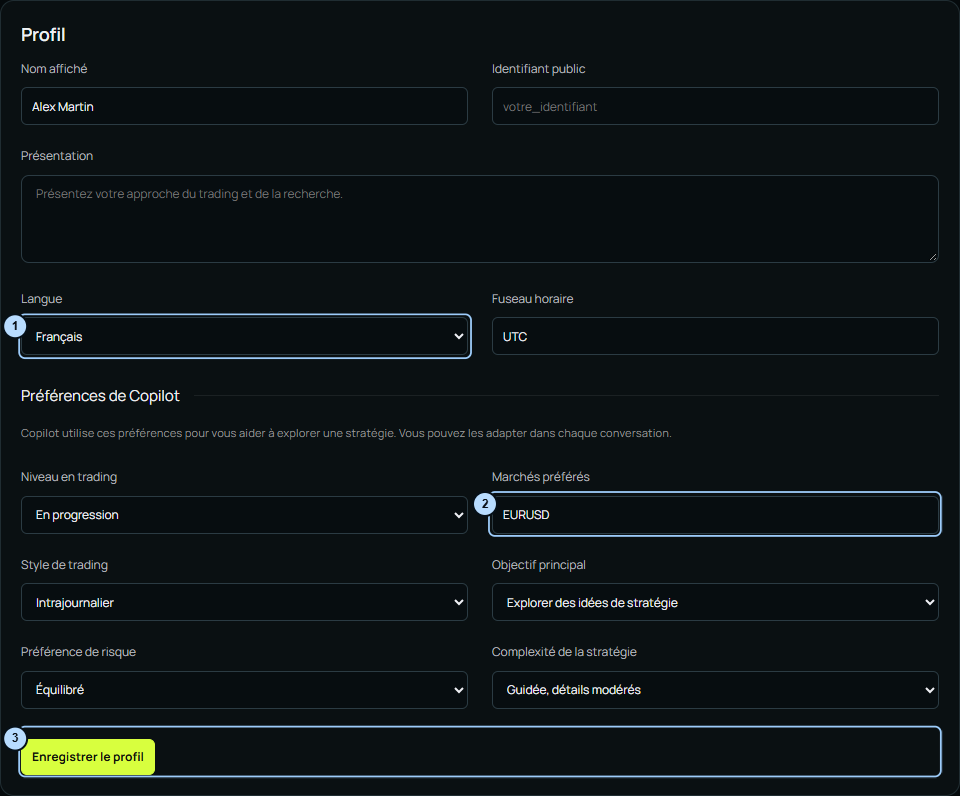
- Identity and language: review your name and presentation information before saving.
- Markets and style: describe your current habits; update them when your approach changes.
- Goal, risk and complexity: describe the guidance you want, then use the profile’s save button.
This information provides context for guidance. It is not enough to define an entire strategy. If your profile says EURUSD intraday and you want to study XAUUSD M5, say so in your request and check the project’s instrument.
Experience and appearance
The Experience tab contains the available display choices. Select an offered option, then choose Apply appearance. Interface preferences saved in this browser are not parameters of the exported trading robot.
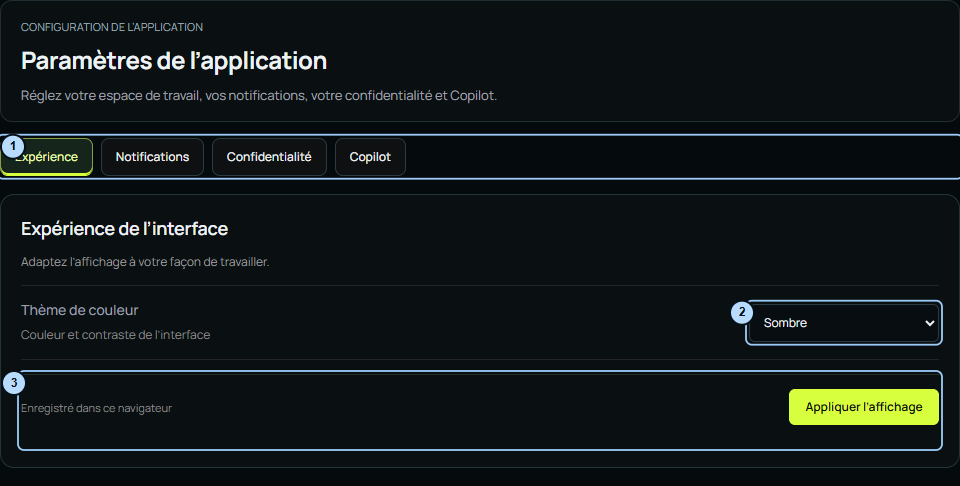
- Tabs: choose Experience, Notifications, Privacy or Copilot according to your intention.
- Appearance: only the options currently offered can be selected; an absent theme is not an available choice.
- Apply appearance: confirm the display choice. This button does not start an AI reply.
Some display choices may need to be selected again in another browser or after clearing local data. Also check the signed-in account if your projects or allowance do not match what you expected.
Notifications and privacy
In Notifications, select the email categories you want, then choose Save notifications. Options cover product updates, research communications and optional offers.
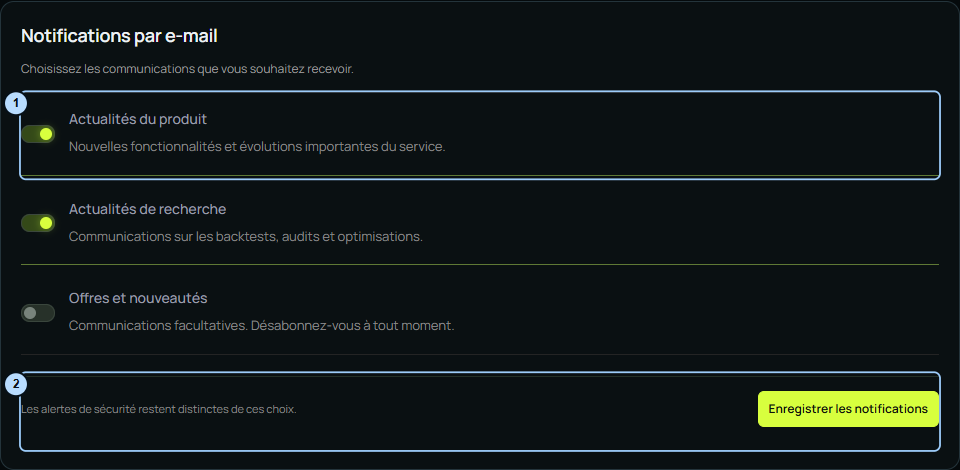
- Categories: enable only the communications you want to receive.
- Save: apply this form’s choices. Checking a category does not mean an email will be sent immediately.
These choices do not guarantee an email for every action. Security alerts remain separate from optional communications. Privacy lets you review account information and access the offered account actions; read their confirmations before deletion. The Account, credits and privacy guide covers related questions.
What is the chat model setting for?
A model is the AI selected to handle your request. Automatic lets Pulsix use an available model for your account. Choose a specific model when you have a reason to prefer one of the offered options.
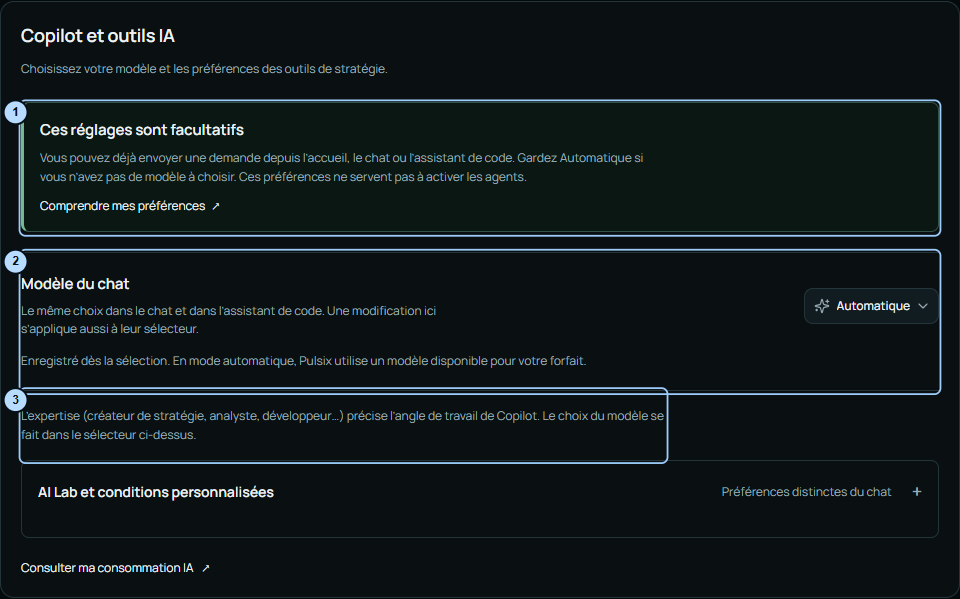
- Optional settings: you can begin without changing this page.
- Chat model: this picker shares the choice used in chat and the code assistant. A change is saved when selected.
- Expertise: strategy creator, analyst or developer describes a perspective. Choosing expertise is not an additional activation step required to receive a reply.
The chat model picker also includes an AI settings link. It opens this same page; there is no second configuration to repeat. Select Automatic to return to general selection. Available options depend on your access; a preference does not unlock models or features outside your plan.
Which tools use these preferences?
| Workspace or action | Preference to check | What to remember |
|---|---|---|
| Conversation from Home | Chat model | No mandatory setup; Automatic is suitable for getting started |
| Studio Copilot chat | Chat model | The same model choice, with the project and conversation context |
| Code assistant | Chat model | The choice is shared; access to the feature still depends on the account |
| Creator, analyst, risk manager or developer expertise | The view’s expertise picker | Guides the perspective; it is not an agent on/off switch |
| AI Lab experiments | AI Lab and custom conditions | Separate preferences; do not assume the exact chat model is inherited |
| Create and test a custom condition | AI Lab and custom conditions | The same tool preference group, separate from the chat model |
| Generate and compile a strategy | Code view and generation controls | Compilation is not a conversation to activate in AI preferences |
An AI Lab experiment may require a saved strategy and a baseline backtest. These prepare the experiment; they do not activate an agent. See Compare in AI Lab for that workflow.
Advanced preferences for AI tools
Open AI settings from AI Lab or custom condition creation. AI Lab and custom conditions concerns these uses. Keep Automatic if you do not want to select a provider, meaning the AI service offered for these tools.
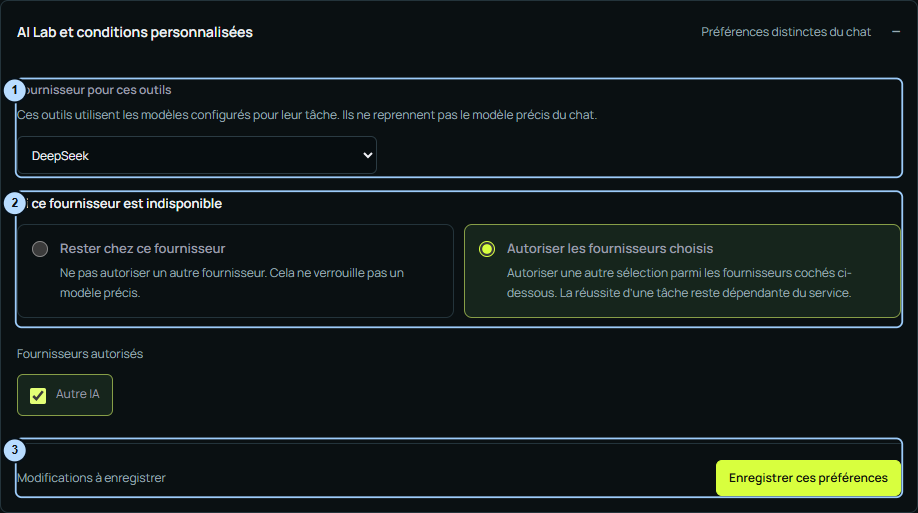
- Provider: keep Automatic or select an available service. This does not necessarily select the exact chat model.
- Unavailability: when you have selected a specific provider, stay with it or authorise the other offered providers. Check only those you want to authorise.
- Save these preferences: apply the tool form. This save action is separate from the chat model’s immediate selection.
If no other provider is offered, there is no alternative to check. Keep the current choice or return to Automatic according to your intention. Authorising another selection does not guarantee task completion: availability and account limits still apply.
Know what is saved
| Choice | Confirmation action | Scope |
|---|---|---|
| Profile and trading preferences | Profile save button | Information associated with the account |
| Notifications | Save notifications | Account communication preferences |
| Chat model | Selection in the list | Account AI choice for chat and the code assistant |
| AI Lab and custom condition preferences | Save these preferences | Separate account choices for the tools |
| Appearance | Apply appearance | This browser’s preference |
| Strategy settings | Project save actions | The relevant project and version; review before testing or export |
An unsaved tool form remains a draft while navigating in the session; this does not replace its save action. Condition text is retained during the trip to settings and back in the session. Keep a copy of important information before closing or reloading unsaved work.
Use Copilot without changing preferences
Keep Automatic and make a specific request:
Explain the selected strategy's rules without changing them.
Identify anything still ambiguous and ask me the necessary questions.
When you want to build, modify, draw or run a test, name the action and what should remain unchanged. Work with Copilot provides detailed example prompts.
If a reply is missing, not having customised preferences is not itself an error. Read the displayed message, review usage if a limit is reported, and follow troubleshooting. Avoid changing several preferences at random or repeatedly submitting the same task while it is processing.